

Your prompts, in every app on your desktop.
Fill a prompt's blanks and paste it into ChatGPT, Claude, Cursor or Word. For Windows and Mac.

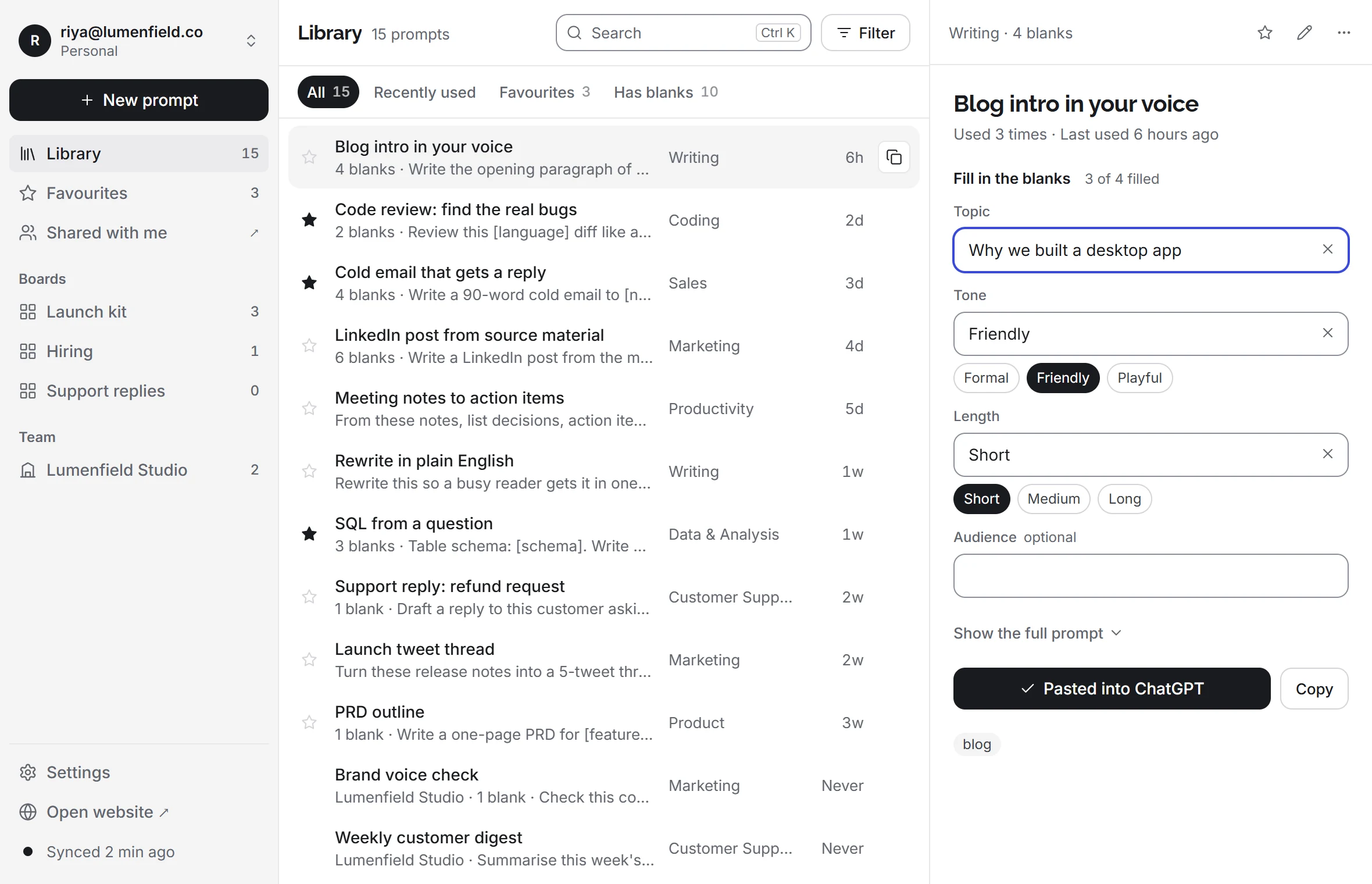
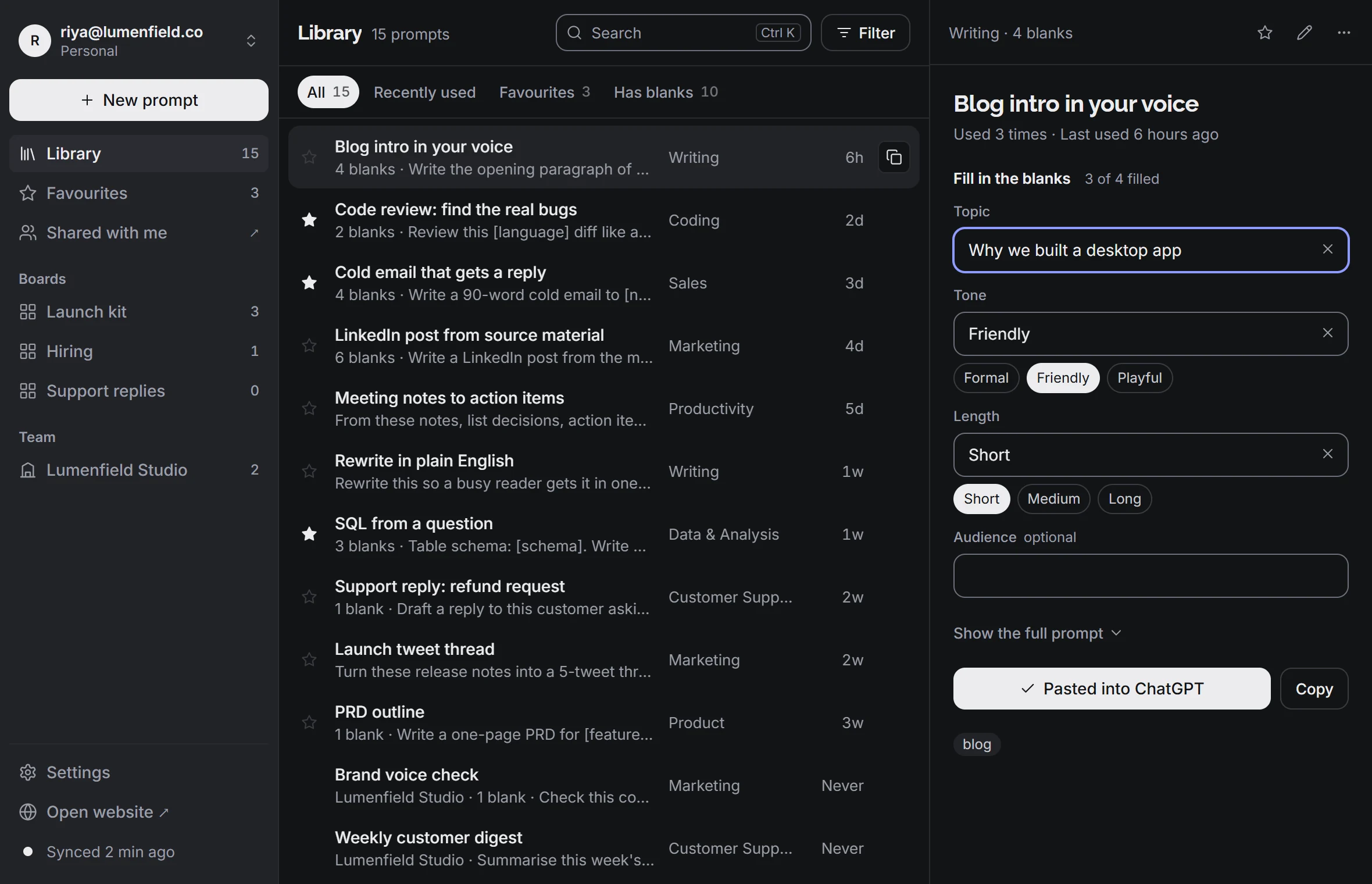
Pastes into ChatGPT, Claude, Perplexity, Gemini, Cursor, VS Code, Word and any other text box.
- A Notion page called Prompts (final)
- A Slack message to yourself
- prompts.txt on the desktop
- A ChatGPT chat from three weeks ago
- A sticky note on the monitor
The problem
Your best prompts are everywhere except where you're typing.
How it works
Fill the blanks. Paste. Back to work.
Every [blank] in a prompt becomes a field. Fill them in and the whole prompt lands in the app you were just using. Try one here.
Cold email that gets a reply
Fill in the blanks2 of 4 filled
Write a 90-word cold email to Priya, [role] at Lumenfield. One specific observation about their work, one line on [product], and one clear question.
In the app this button reads Paste into ChatGPT and puts the prompt there for you.
Shortcuts
Three shortcuts. Nothing else to learn.
The app sits in your tray. It opens when you press a key and gets out of the way when you're done.
Go on, press one. The keys below respond.
Find a prompt from anywhere
A search bar opens over the app you're in. Type a few letters, press Enter, and the prompt is pasted. It works offline too.
Save what you selected
Found a good prompt in a doc, an email or a chat? Select it, press the keys, give it a title and a board.
Suggestions while you type
In the ChatGPT and Claude desktop apps, prompts that match what you're typing show above the message box.
You can change every shortcut in Settings.
Web and desktop
One library, on every screen you use.
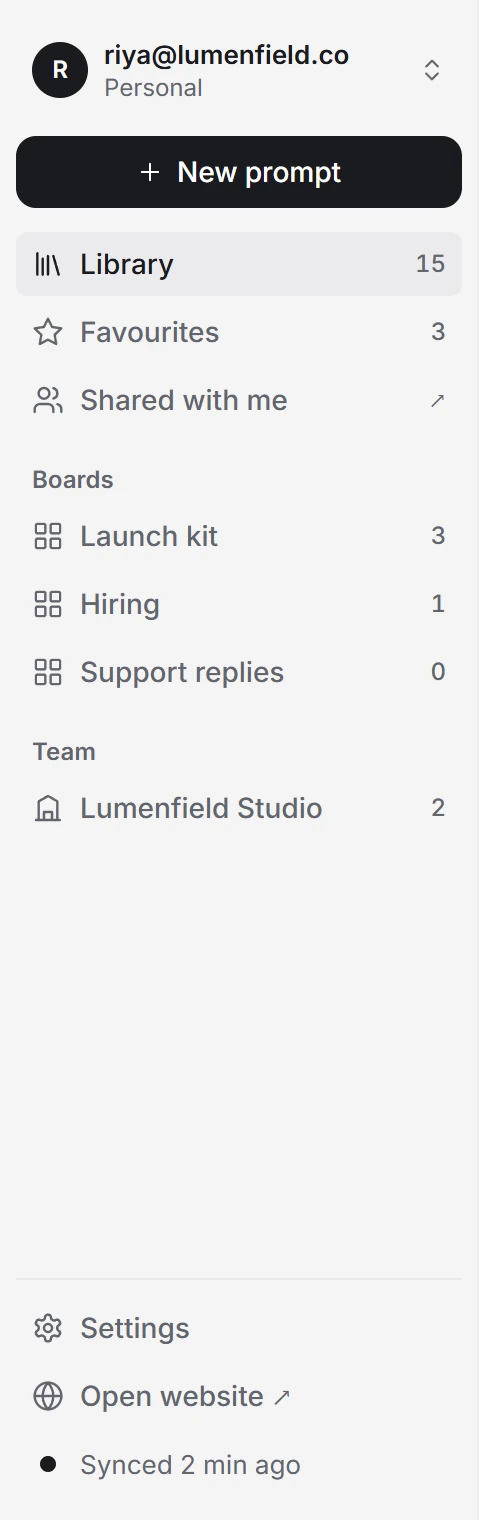
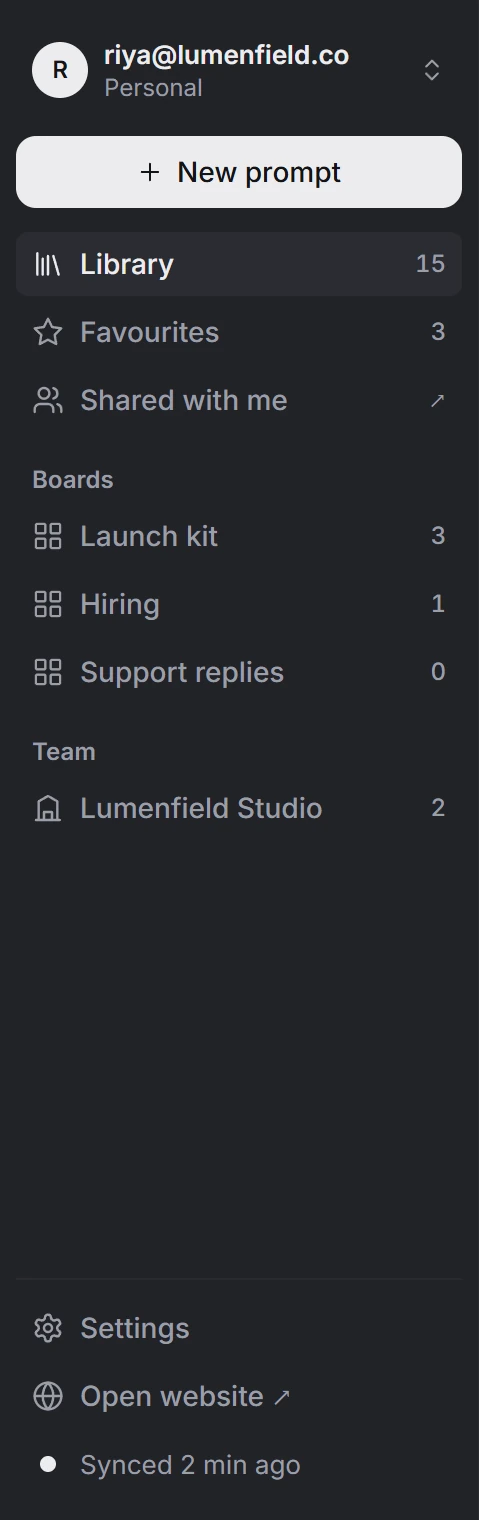
Sign in once and the prompts, boards and team prompts you already have are there. Nothing to import.
When
About the beta
Windows and Mac arrive on the same day, planned for the end of November. Before that, we may invite some people on the list to test a beta version and tell us what breaks.
Each email has the install link. When something doesn't work, reply to it and tell us.
Do I need the Chrome extension too?
No. The desktop app works on its own. If you use the extension, keep it: both read the same library.
Does it read my screen?
No. Saving copies only the text you selected, when you press the keys. Suggestions look only at the message box you're typing in, while that app is in front.
How do I sign in?
The app opens savemyprompts.net in your usual browser. Sign in there with email or Google, then click Connect the desktop app. Your password never goes into the app.
Which email should I use?
The one on your Save My Prompts account, so your library is waiting when you sign in. No account yet? Any email works and you can make one later.
When can I get it?
Windows and Mac arrive on the same day, planned for the end of November. Some people on the list may get a beta version to test before that.
Web and desktop
Also on
the web
The same library sits beside ChatGPT, Claude, Gemini and Perplexity in Chrome and Edge, and at savemyprompts.net in any browser.