

Built for people who use AI every day
Save the prompts that work in ChatGPT, Claude, Gemini and Perplexity. Get them back in one click, with the blanks filled in.
Insert works in ChatGPT, Claude, Gemini and Perplexity in Chrome and Edge, and your library connects to ChatGPT, Claude, Claude Code and Cursor.
Good prompts are easy to lose
Lost in chat history
The prompt that worked is somewhere in last month's chats, and you can't find it when you need it.
Typed again from memory
You rewrite it from scratch, miss the line that mattered and get a weaker answer.
Scattered across apps
Some are in notes, some in documents, some in a message to yourself. None of them are next to the chat box.
Save it once. Use it everywhere.
Keep a prompt the moment it works, find it in seconds, and fill in only the parts that change.
Save
Keep a prompt the moment it works.
Straight from the chat
In ChatGPT, Claude, Gemini or Perplexity, click Save last prompt in the side panel, or Save + Improve to tidy it up first.
From anywhere else
Select text on any page, right-click and choose Save as prompt. Or import a backup, a CSV file or your ChatGPT data export.
Organise
Find the right prompt in seconds.
A board for each job
Group prompts for a client, a course or a project you repeat: 2 private boards on Free, as many as you need on Pro.
Search, filter and pin
Find a prompt by its title, text or tags in the side panel, quick search or the website, and pin the ones you use most.
Reuse
Get the same good answer every time.
Fill in the blanks
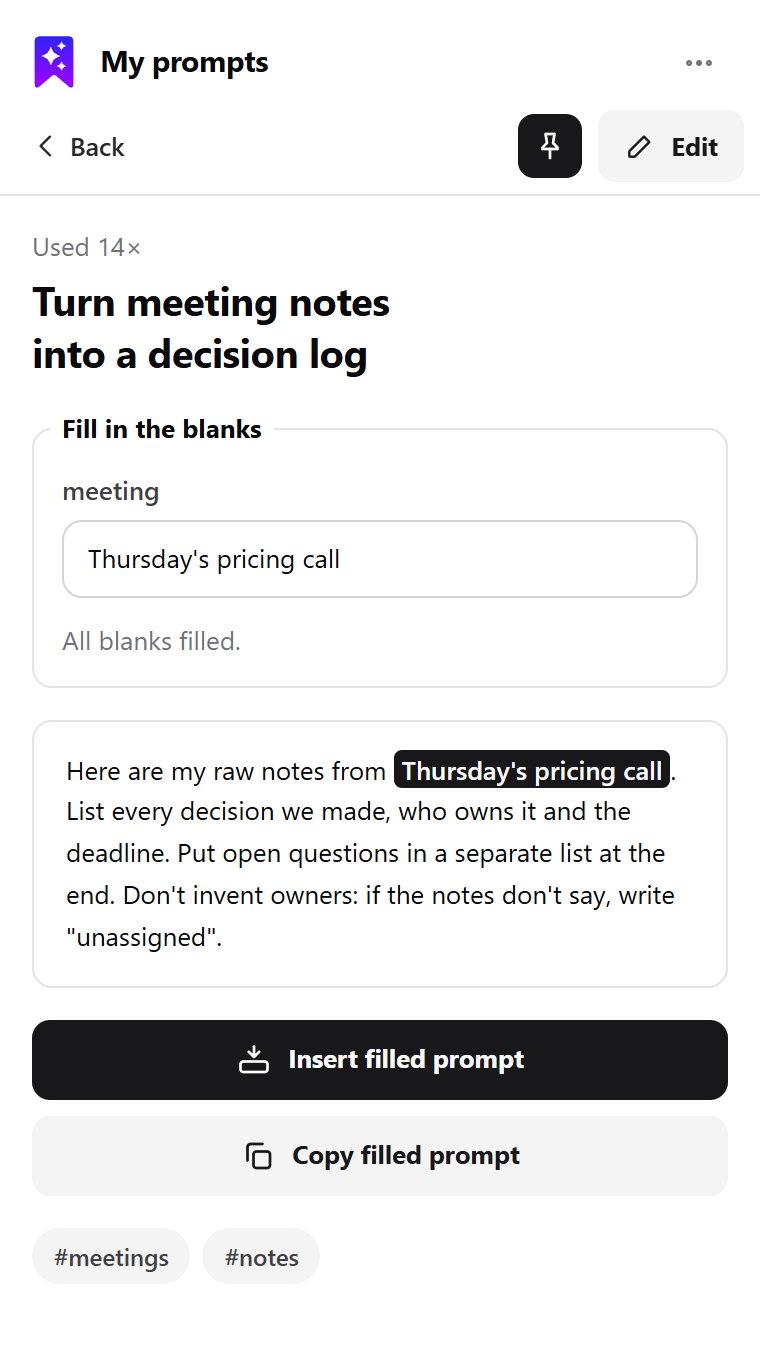
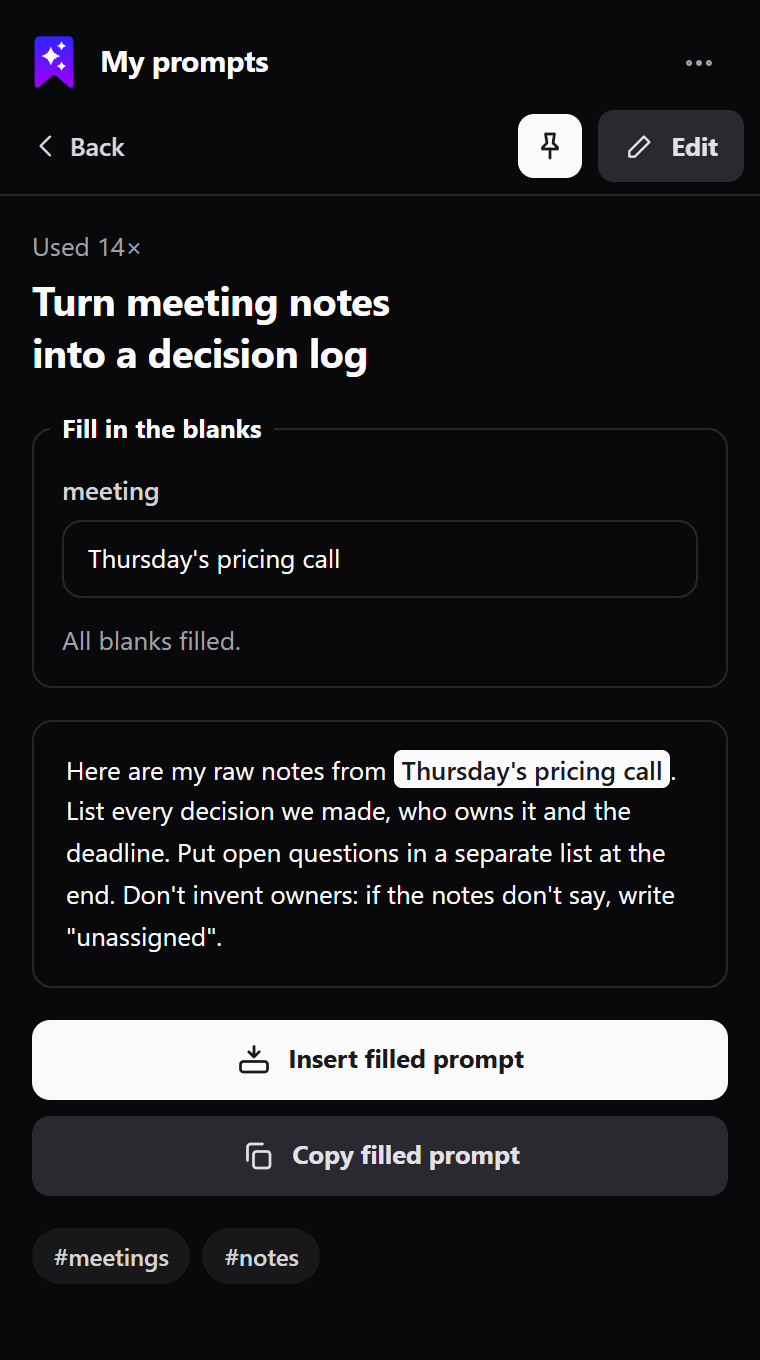
Write [audience] or {{topic}} where the details change. Next time, fill them in and choose Insert: in ChatGPT, Claude, Gemini and Perplexity the prompt goes into the chat box, and you still press send.
Suggested as you type
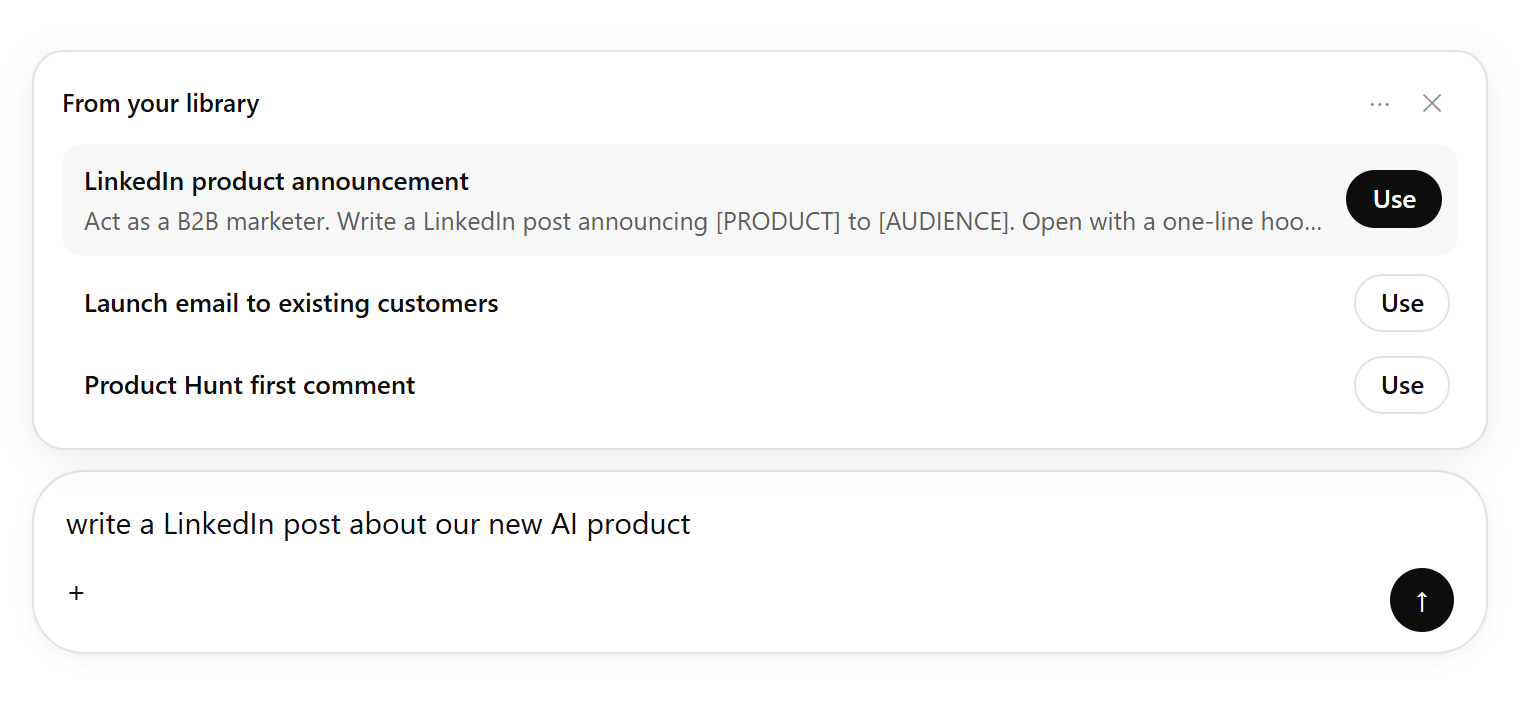
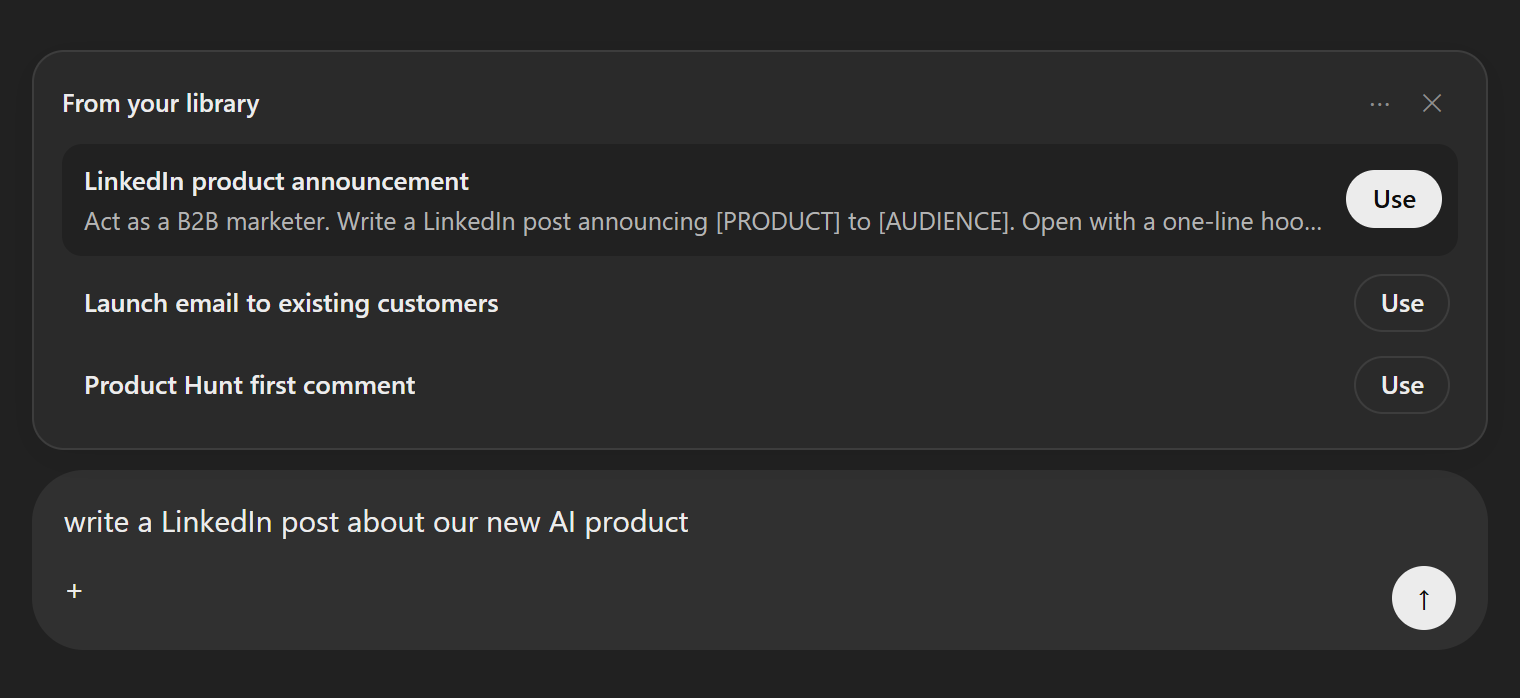
Start typing in the chat box and prompts from your own library show up above it, matched on your computer.
New to blanks? See how to write reusable prompt templates.
Better every time you use them
Tighten a prompt before you send it, and never lose a version that worked.
Improve before you send
Improve points out what a draft is missing, with no limit. When you want an AI rewrite, ask for one: 3 a day on Free, 25 on Pro.
Every version kept
Each edit keeps the version before it, 10 for each prompt on Free and 100 on Pro. Open a prompt and choose History to go back.
Yours to take
Export your whole library as JSON, CSV or Markdown whenever you like, on every plan.
Wherever you use AI
One library, in your browser, on the website and inside the AI apps you already use.
Chrome and Edge
The side panel, quick search and Insert in ChatGPT, Claude, Gemini and Perplexity. In Copilot, the prompt is copied for you to paste.
About the extensionThe website
Your whole library, boards and version history on savemyprompts.net, on any computer.
Help and guidesInside your AI apps
Connect ChatGPT, Claude, Claude Code and Cursor, then ask for a saved prompt by name, or save one without leaving the conversation.
Connect your AI
Made for the way you work
Writers and marketers
Your brief, brand voice and post formats, saved once and filled in for each piece.
Marketing prompt templatesDevelopers
Code review, debugging and documentation prompts in your browser, and by name in Claude Code or Cursor once they're connected.
Students
Study, summary and feedback prompts you can use for every subject and every term.
Job seekers
CV, cover letter and interview practice prompts, with a blank for the role and the company.
CV and career prompt templatesFreelancers and founders
Proposals, client emails and research prompts that give you the same quality answer every time.
Email prompt templates
Private by default. Shared when you choose.
Every board starts private. On Pro, share one by link or publicly, or add up to 50 collaborators who can open and copy its prompts, and see how many people viewed it.
It works when you click
Every permission the extension asks for, and why, is on the extension page; the details are in the privacy policy.
Private by default
Nobody sees your prompts unless you share a board with them.
Reads a chat only when you ask
A chat's messages are read only when you click a save button, and only in that tab.
Suggestions stay on your computer
Suggestions and the Improve hint read the draft in the chat box and match it on your computer. Improve's AI rewrite sends the draft only when you ask for one.
Never used for training
We never use your prompts to train AI models, and we don't sell your data.
Free to start. Pro when your library grows.
Free has everything you need to save and reuse prompts. Pro takes the limits off and lets you share.
| What you get | Free | Pro |
|---|---|---|
| Prompts in your library | 50 | Unlimited (fair use) |
| Private boards | 2 | Unlimited |
| AI rewrites with Improve | 3 a day | 25 a day |
| Improvements in ChatGPT, Claude and Cursor | 20 a month | Unlimited |
| Versions kept for each prompt | 10 | 100 |
| Share boards by link, publicly or with collaborators | Free: no | Pro: yes |
| Import, and export everything | Free: yes | Pro: yes |
Pro
$3.99/ month
Or $29 a year, 39% less.
Not on sale in your country yet.
Free stays free, with no card needed.
Questions
- Is Save My Prompts free?
- Yes. Free keeps up to 50 prompts and 2 private boards, with blanks, Insert, import and export. Pro adds unlimited prompts (fair use), more AI rewrites, longer version history and sharing.Compare plans
- Which AI tools does it work with?
- In Chrome and Edge, Insert puts a prompt in the chat box in ChatGPT, Claude, Gemini and Perplexity; in Copilot it's copied for you to paste. You can also connect your library to ChatGPT, Claude, Claude Code and Cursor.
- Does it read my chats?
- No, not by itself. It reads a chat only when you click a save button, and only in that tab. Suggestions and the Improve hint read the draft in the chat box on your computer, and nothing is sent.What the extension can access
- Do I need the browser extension?
- No, but it's the quickest way to save and insert prompts. Your library also works on the website, and in ChatGPT, Claude, Claude Code and Cursor once they're connected.Connect your AI
- What's the difference between Pro and Teams?
- Pro is for one person: your own library, with boards you can share. Teams adds a library the whole team shares, with one bill and an admin who invites people, and everyone on the team has Pro.Save My Prompts for teams